Hide Recommendations Windows 11 Start Menu: Quick Guide
Want to hide recommendations Windows 11 shows in the Start menu? Follow these quick steps to remove recent files, apps, and suggested items.
Want to hide recommendations Windows 11 shows in the Start menu? Windows 11 displays recommended files, apps, and recent items by default, but you can remove that section with Intune or Group Policy for a cleaner Start menu experience.
Microsoft documents this setting as Hide recommended section for both CSP and GPO-based configuration: https://learn.microsoft.com/en-us/windows/configuration/start/policy-settings
Table of Contents
- How to Hide Recommendations Windows 11 Shows in Start
- The Recommendations Section
- Option 1: Configure the Setting with Intune
- Option 2: Configure the Setting with GPO
- Outcome
How to Hide Recommendations Windows 11 Shows in Start
The Recommendations section in the Windows 11 Start menu can be hidden in two main ways:
- Intune, using a custom CSP policy.
- Group Policy, using the Start Menu and Taskbar administrative template.
This is useful when you want a cleaner Start menu layout or when your organization does not want recommended files and apps shown to users.
The Recommendations Section
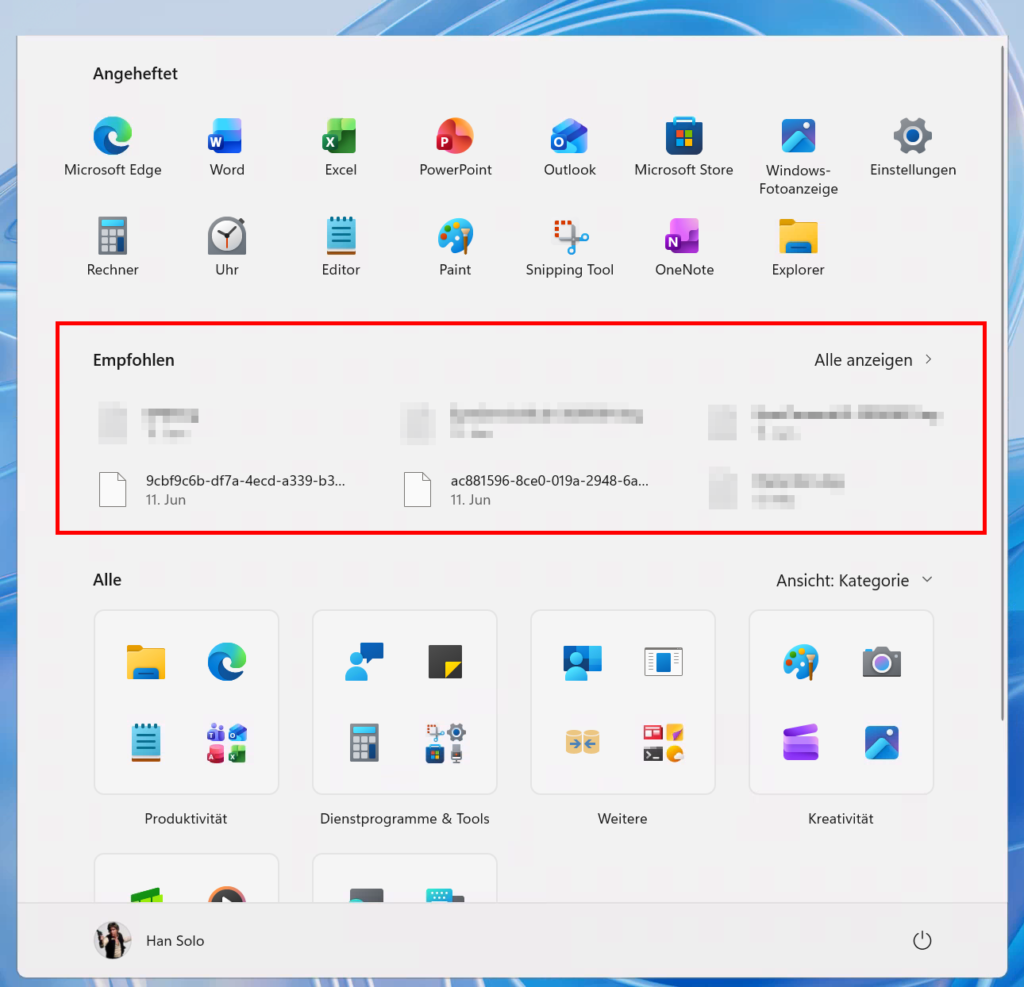
The section I am talking about is the Recommended area inside the Windows 11 Start menu.
Option 1: Configure the Setting with Intune
The easiest way to hide recommendations Windows 11 shows in managed environments is through Intune by using a custom CSP.
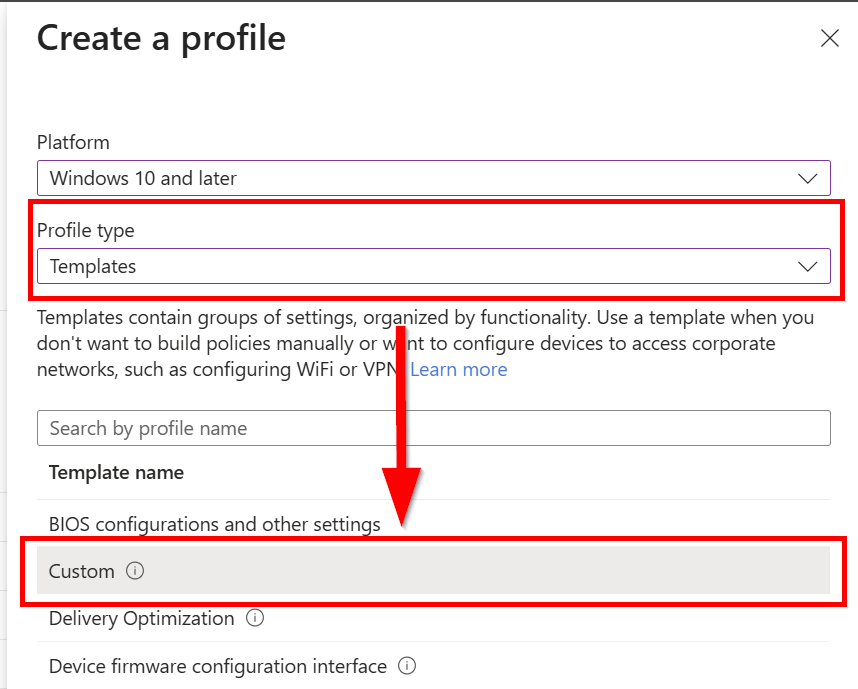
In Intune, create a new policy for Windows 10 and later. Choose Templates as the profile type, then select Custom.
After naming the policy, open Configuration settings and add a new OMA-URI row.
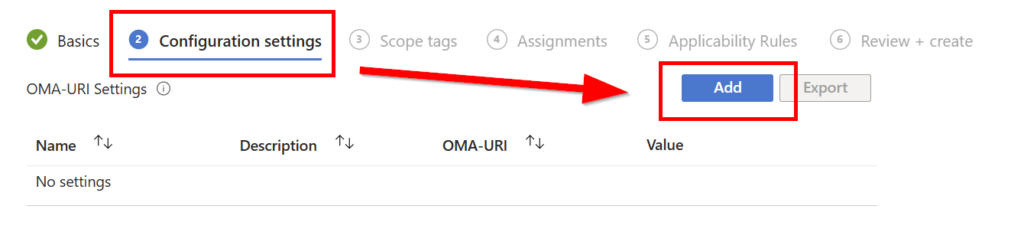
Use the following settings:
| Setting | Value |
|---|---|
| Name | Hide Recommendation Section |
| Description | Add a description that fits your naming standard |
| OMA-URI | ./User/Vendor/MSFT/Policy/Config/Start/HideRecommendedSection |
| Data type | Integer |
| Value | 1 |
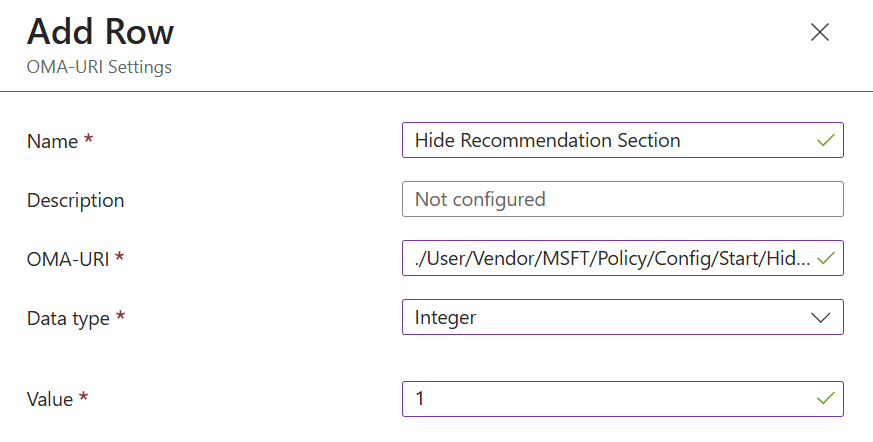
You can also use the device-based path instead of the user-based path:
./Device/Vendor/MSFT/Policy/Config/Start/HideRecommendedSectionMake sure your assignment matches the scope you choose. User-based configuration should target users. Device-based configuration should target devices.
After that, configure your Scope Tags and Assignments as required.
Option 2: Configure the Setting with GPO
You can also hide the Recommended section with Group Policy.
The policy can be found under:
Computer Configuration > Administrative Templates > Start Menu and TaskbarOr under:
User Configuration > Administrative Templates > Start Menu and Taskbar > Remove Recommended section from Start MenuEnable the policy to remove the Recommended section from the Windows 11 Start menu.
Outcome
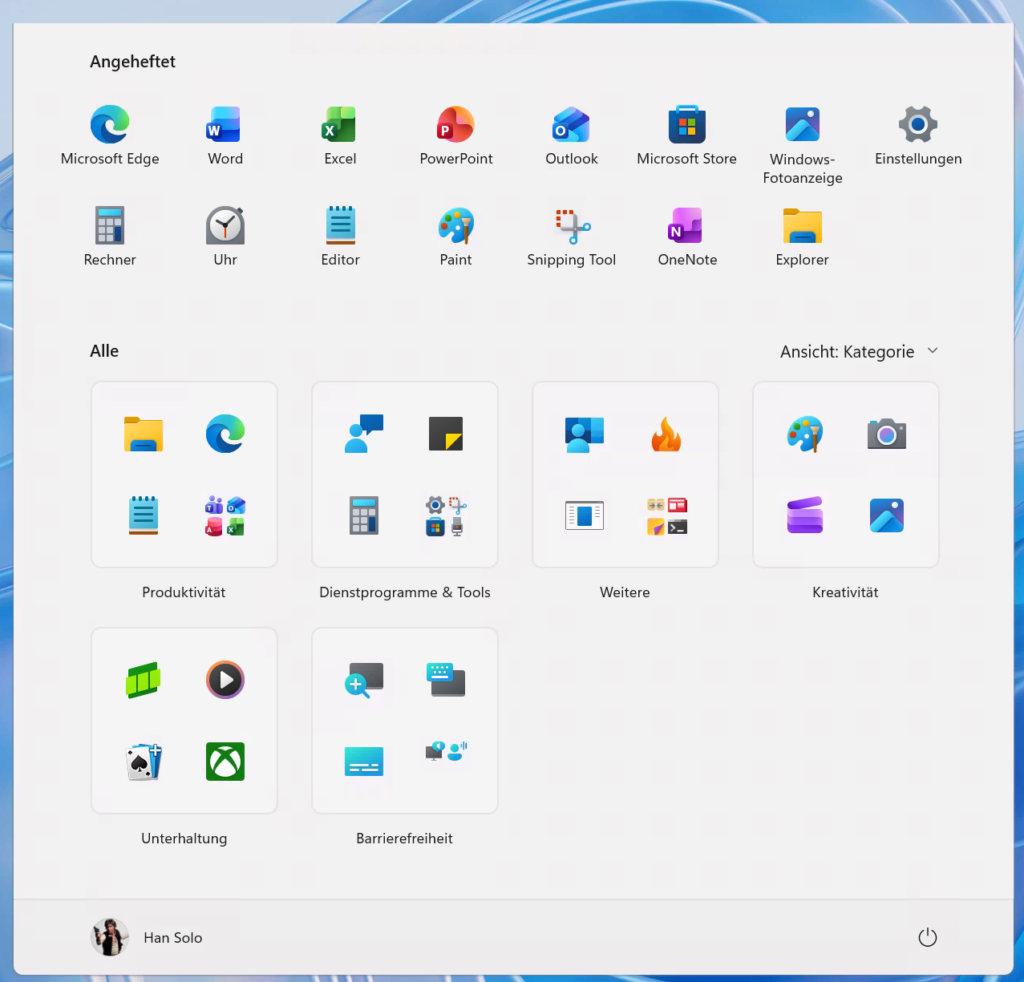
After you hide recommendations Windows 11 will show a cleaner Start menu without the Recommended section.
This post first appeared on https://zerotruststories.com/how-to-hide-recommendations-in-windows-11-start-menu/.